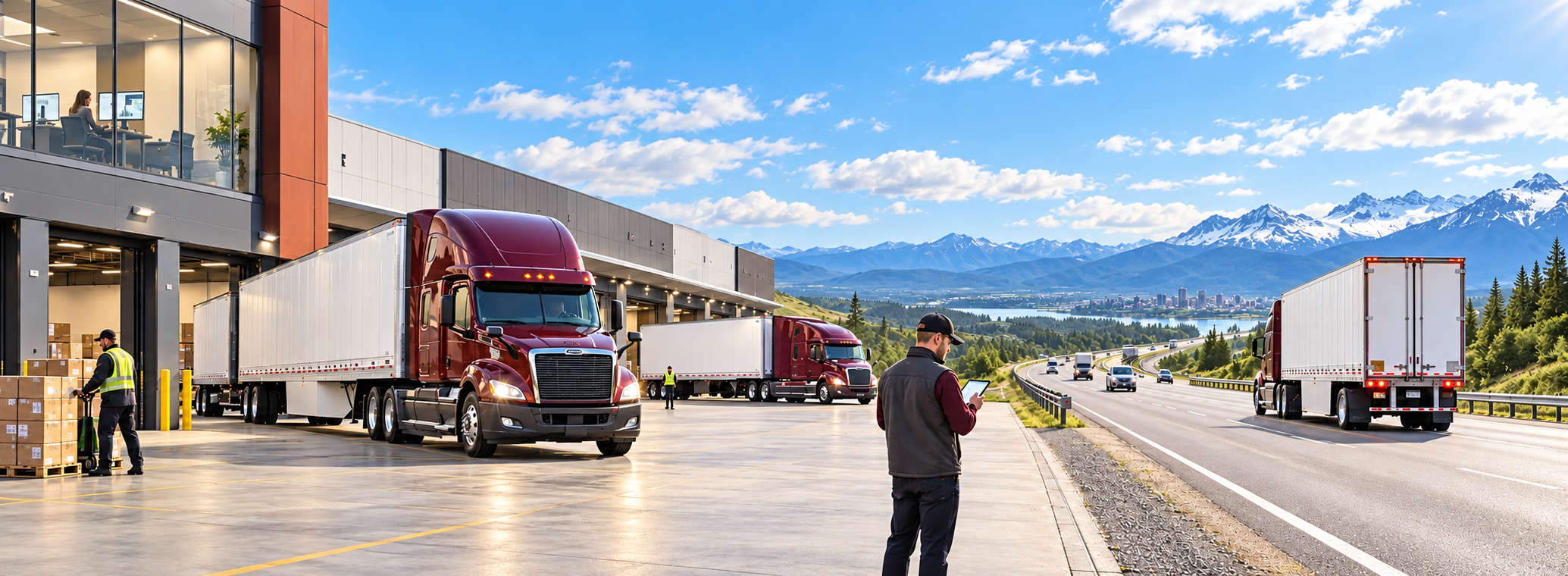

Modern semi trucks with dry van trailers moving freight on a bright open highway

Trucking dispatch and fleet management software

Trucking dispatch and fleet management software for small carriers

Keep your fleet moving.

Connect dispatch, drivers, PODs, invoices, and fleet records with CarrierEase and TruckEase.

Built for the pace of modern semi-truck fleets.

Freight Control Loop Connected
  1. OfficeLoad assigned
  2. RoadFleet visible
  3. PODDocument received
  4. PaymentInvoice ready
120 active loads 88 drivers connected 44 invoices ready

One operation. Two purpose-built tools.

The office and the road, finally in sync.

CarrierEase gives your team a clear command center. TruckEase gives drivers a focused mobile companion. Together, they provide practical trucking software for small fleets and growing carriers.

Fleet dispatcher monitoring routes and semi trucks from a modern operations office
For the office

CarrierEase

Use CarrierEase as your trucking dispatch software and browser-based command center to plan loads, manage fleet records, organize documents, track activity, prepare invoices, and understand performance.

  • Dispatch and live fleet visibility
  • Drivers, vehicles, brokers, and subhaulers
  • Documents, compliance, accounts, and reports

Professional semi-truck driver using a phone beside a dry van at a freight terminal
For drivers

TruckEase

TruckEase is the truck driver dispatch and Proof of Delivery app for keeping trip details, fuel receipts, load updates, and delivery paperwork close at hand.

  • Assigned-load details and status updates
  • Fuel, receipt, and expense capture
  • Proof of Delivery upload from the field
Download the mobile app

The Freight Control Loop

Every handoff stays connected.

Information follows the load, so the office sees what drivers complete and drivers know what comes next.

  1. 01
    Office

    Build the load, assign the driver, and set the trip in motion.

  2. 02
    Road

    Share load details, monitor progress, and capture trip activity.

  3. 03
    POD

    Receive Proof of Delivery and supporting documents from the field.

  4. 04
    Payment

    Move completed work into invoicing, accounts, and reporting.

Semi trucks connecting a freight terminal with the open interstate
From terminal to highway, one shared operating picture.

Clarity across the business

Less chasing. More control.

Bring daily operations, records, and financial follow-through into a connected workflow your whole team can understand.

01

Dispatch with context

Keep load details, assignments, brokers, subhaulers, and supporting records together.

02

See the fleet

Follow current activity and GPS-enabled visibility without piecing together separate conversations.

03

Collect clean paperwork

Organize compliance files, receipts, expenses, and delivery documents where the office can act on them.

04

Close the loop

Turn completed loads into invoices, account updates, payroll inputs, and practical business reports.

CarrierEase plans

Start at the size of your fleet.

Choose a straightforward plan today, with room to talk when your operation needs a custom fit.

Get started

15-Day Trial

$50 total

Your first 15 days

  • 1 CarrierEase user
  • 1 driver
  • 1 vehicle
  • 100 monthly AI credits
Start 15-day trial

Growing fleets

Small Carrier

$250/month

or $2,400/year

Save $600 annually

  • 2 CarrierEase users
  • 5 drivers
  • 5 vehicles
  • 500 monthly AI credits
Choose Small Carrier

Custom operations

Corporate Plans

Let’s build the right fit.

For larger fleets, additional users, and tailored operating needs.

  • Fleet-sized access
  • Custom operational scope
  • Direct planning conversation
  • Growth-ready configuration
Contact us

Plan details are subject to account eligibility and may evolve. Contact us if you have questions about the best fit.

TruckEase for drivers

The road-ready side of your operation.

Give drivers a focused place for load activity, trip records, expenses, and Proof of Delivery—connected back to your CarrierEase office workflow.

Android may ask you to allow installation from your browser or file manager. Download only from this official page.

Trip summaryDocuments ready
TE

Current load

On the road

PODReady to upload
Office updateLoad status synced

CarrierEase & TruckEase

Frequently asked questions

Getting started, AI dispatch creation, plans, and support.

Already using the apps? Explore the product help section.

About CarrierEase and TruckEase

What is CarrierEase?

CarrierEase is the office platform for managing trucking operations. It brings dispatching, drivers, vehicles, documents, operational records, payroll preparation, invoicing, and reporting into one place.

Its AI dispatch creation feature automatically fills dispatch forms from supplied job instructions, helping office staff avoid entering the same information manually.

What is TruckEase?

TruckEase is the driver app connected to CarrierEase. Drivers use it to view assigned work, access job instructions, record activity, and submit supporting documents from the road.

Together, the two applications connect the office with the people performing the work.

How do CarrierEase and TruckEase work together?

The office creates and assigns work in CarrierEase. Drivers receive their assignments in TruckEase, record the required activity, and submit their paperwork.

Those records become available for office review, payroll preparation, and invoicing, helping reduce repeated data entry, missing documents, and follow-up calls.

Who is the system designed for?

CarrierEase and TruckEase are built for small carriers and growing fleets. CarrierEase is the office side — for fleet owners, dispatchers, office staff, and payroll and billing teams. TruckEase is the driver side, giving drivers their assignments, job instructions, and paperwork tools on the road. Together they connect the office with the people performing the work.

Does the platform support both over the road and home daily operations?

Yes. CarrierEase and TruckEase support both over the road (OTR) and home daily operations, with workflows suited to each:

  • Over the road operations: Manage dispatches, trip activity, pickup and delivery details, and supporting documents, including proof of delivery.
  • Home daily operations: Manage daily assignments, shifts, multiple loads, time records, and applicable tickets and tags.

For both types of operations, the office manages and assigns work through CarrierEase, while drivers receive assignments, record activity, and submit documents through TruckEase.

AI Dispatch Creation

Can I create a dispatch without manually entering all the job details?

Yes. With Create Dispatch using AI, you can paste the job instructions or upload a dispatch document. CarrierEase uses AI to read the information, extract the relevant details, and automatically populate the dispatch form with the values.

You review the populated form, make any necessary changes, and save the dispatch.

What information can AI fill into the dispatch form?

AI can extract information such as the job date, start time, pickup and delivery locations, material, number of trucks required, job references, and instructions, where those details are included in the information you provide.

The extracted values are placed into the corresponding form fields, ready for review.

Do users still need to do data entry when creating a dispatch?

Users do not need to manually retype the job details that AI extracts from the supplied instructions. AI handles the form filling; the user reviews and confirms the information.

If the original instructions leave something out, the user can add the missing details before saving.

Can I change the information that AI enters?

Yes. The populated dispatch form remains editable. You can check the details, correct a value, add instructions, or complete missing information before saving and assigning the dispatch.

How does AI dispatch creation help my office team?

It reduces repetitive typing and helps the office turn incoming job instructions into dispatches more quickly.

Instead of copying information from a message or document into individual fields, the dispatcher can focus on reviewing the job, assigning the required drivers and trucks, and coordinating the work.

How does the AI-created dispatch reach the driver?

After the office reviews, saves, and assigns the dispatch in CarrierEase, the assigned driver can view the job in TruckEase.

The information follows the assignment, so the office does not have to enter the same job details again for the driver.

The workflow: Paste or upload job instructions → AI fills the dispatch form → Review → Save and assign → Driver views the job in TruckEase.

Getting Started and Account Access

How does a carrier get started?

Create a CarrierEase account, complete the company setup, and select an available plan. Then set up the office users, drivers, vehicles, customers, and other business relationships needed for your operation. Drivers get started in TruckEase by adding their driver's license (see the next questions), and once a driver is connected to your carrier, you can assign them work.

Where can I access CarrierEase and download TruckEase?

CarrierEase is accessed through a web browser. TruckEase is available for Android and iPhone.

Use the official links on the theTruckISM website to access CarrierEase and download TruckEase.

How does a driver connect with a carrier?

A driver starts in the TruckEase app by adding their driver's license, then requests an association with the carrier. The carrier receives a verification code and completes the verification in CarrierEase. An active carrier–driver association is required before the driver can be assigned dispatches.

Can different office users have different access permissions?

Yes. CarrierEase supports user permissions so access can reflect each person’s responsibilities. For example, dispatch staff and payroll staff may need access to different areas.

The number of office users available depends on the selected plan.

Do you help us get set up?

Yes. When you start, you get a personal walkthrough of the system. We help you set up your company, office users, drivers, and vehicles, and show your team how dispatching, paperwork, payroll preparation, and invoicing flow through CarrierEase and TruckEase.

How long does it take to get started?

Create your CarrierEase account, complete the company setup, and choose a plan. Then add your office users, drivers, and vehicles, connect your drivers through TruckEase, and you can start assigning work.

Compliance, Plans, and Support

Does CarrierEase help with DOT compliance?

Yes. CarrierEase keeps your driver files, medical cards, vehicle records, and compliance documents in one place, with expiry dates recorded against them. The office can see what is coming due and run compliance reports, instead of tracking renewals on paper or in a spreadsheet.

What does CarrierEase cost?

CarrierEase is priced by plan, based on how many office users, drivers, and vehicles your operation needs. See the CarrierEase plans section on this page for current pricing — that is the one place we keep prices updated. You can start with the 15-day trial, and if your fleet does not fit a standard plan, ask us about a Corporate plan.

What are AI credits?

AI credits power the AI features in CarrierEase, such as Create Dispatch using AI, which reads job instructions you paste or upload and fills the dispatch form for you. Each plan includes a monthly allowance of AI credits; the plans section on this page shows how many credits come with each plan.

Can I get a refund?

You can request a full refund within 24 hours by writing to service@thetruckism.com.

How do I get help?

For account, plan, or product questions, contact service@thetruckism.com or use the contact form on the theTruckISM website.

For job instructions, dispatch changes, or corrections to work records, drivers should contact their carrier’s office.

Product help

Using CarrierEase & TruckEase

Practical guidance for dispatches, shifts, documents, GPS, payroll, and invoicing.

Dispatching and Managing Work

How do I create and assign a dispatch?

Use Create Dispatch using AI to paste or upload the job information and have the dispatch form populated automatically.

Review the job details, including the date, start time, locations, instructions, and applicable requirements. Complete any missing information, then save and assign the required drivers and vehicles.

Can I assign multiple trucks to the same job?

Yes. CarrierEase supports assigning multiple drivers and vehicles to a dispatch.

This helps the office manage jobs requiring several trucks while maintaining individual driver assignments and work records.

Can I assign work to subhaulers?

Yes. CarrierEase supports subhauler assignments, including the required truck count and job instructions.

Subhauler work can be managed alongside your own fleet’s assignments, with separate records for the assigned work.

Can I copy an existing dispatch for a repeat job?

Yes. An existing dispatch can be copied as a starting point.

Review the date, start time, customer, locations, instructions, and assignments before saving the new dispatch.

Why is an assigned dispatch not appearing in TruckEase?

Confirm that the driver is signed into the correct account, has an active association with the carrier, and has been assigned to the job.

Refresh the dispatch list. If the assignment still does not appear, ask the dispatcher to check the assignment details.

What job information can a driver see?

Drivers can view the information provided for their assignment, such as the customer, start time, pickup and delivery locations, reference numbers, material where applicable, and job instructions.

Available location links help drivers open the supplied address or coordinates in a maps app.

Driver Shifts, Loads, and Paperwork

How does a driver begin a shift?

For assignments that use the shift workflow, open the dispatch and select Begin Shift.

Complete the required starting information, including the odometer reading, fuel level, pre-trip checklist, and dashboard photo. Review the entries before submitting.

Can a driver have more than one active shift?

No. TruckEase allows one active shift at a time.

If an earlier shift is still open, return to that shift and complete it, or contact the office if the record needs correction.

What information is recorded for each load?

For workflows that record individual loads, the record can include arrival and departure times at loading and unloading locations, ticket or weight information, and remarks.

Keeping each load’s information together helps the office review the work and its supporting records.

What is the difference between a tag and a ticket?

In the daily-tag and per-load-ticket workflow, a tag represents the day’s work for the dispatch, while a ticket relates to an individual load.

Upload each document against the appropriate record so the office can match it to the correct work.

Can a driver upload documents before ending the shift?

Yes. For dispatches using the shift-and-document workflow, the Documents section allows paperwork to be added during the shift.

Drivers can submit documents as they become available instead of waiting until the end-of-shift process.

How should fuel purchases be recorded?

Record the fueling information requested in TruckEase, including whether fueling took place at the yard or elsewhere.

Fuel purchased outside the yard requires the supporting receipt in the applicable shift workflow.

How does a driver end a shift?

Select End Shift, enter the ending odometer reading and fuel level, and complete the post-trip checklist.

Provide the required fueling information and supporting receipts, then review and submit the shift.

Where can a driver review a completed shift?

Open the completed shift and select View Summary.

The summary provides a record of the submitted shift information for review and reference.

What should a driver do if a shift time, odometer reading, or document is wrong?

Report the issue to the carrier’s office with the dispatch or shift reference and the correct information.

Include supporting details or documents so an authorized office user can review the correction before the record is used for payroll or invoicing.

GPS, Records, and Document Access

Can the office see driver locations?

CarrierEase provides GPS-based visibility using location updates received from TruckEase.

The information available depends on the phone’s location permissions, background operation, connectivity, and successful transmission of updates.

Can loading and unloading times be recorded automatically?

Where automatic arrival and departure recording is enabled, TruckEase can use location information and configured job-site coordinates to identify site visits.

Drivers and office staff should review the resulting records and report missing or incorrect times.

What should a driver check if location updates are missing?

Check that location services and the required TruckEase permissions are enabled, and that the app is allowed to operate in the background.

Also check the phone’s connection and battery restrictions. If updates remain missing, report the issue to the office with the affected shift details.

What should a driver do if dispatch notifications are not arriving?

Check that TruckEase notifications are allowed in the phone’s settings and that the phone has a working connection.

Open the dispatch list directly to check for assigned work. If alerts continue to fail, notify the office so the issue can be investigated.

What documents can be managed in the system?

The workflows support operational documents such as tags, tickets, delivery records, and fuel receipts, along with company and compliance documents.

Relevant document records can include expiry dates, notes, and supporting information for office review.

Can the office control which documents drivers can see?

Yes. Document visibility depends on the selected sharing setting.

Documents marked Driver & Carrier are available in the relevant driver and carrier views. Documents marked Carrier Only do not appear in the driver’s document view.

What operational reports can CarrierEase provide?

The reporting workflows include dispatch activity, driver assignments, shift records, and app, GPS, and document compliance information.

These records help the office identify missing paperwork, incomplete activity, and items requiring follow-up.

Payroll and Invoicing

What is the difference between “hours on the tag” and “yard-to-yard” hours?

For operations using these time measures, hours on the tag represent the job time recorded for the work, while yard-to-yard hours represent the broader shift period between the recorded shift start and end.

CarrierEase keeps these measures separate so the office can use the appropriate basis for its configured pay arrangement.

What driver pay methods does the payroll workflow support?

The payroll workflow supports gross-pay preparation using per-hour tag time, per-hour yard-to-yard time, per-shift, per-mile, and per-load methods.

The applicable method and rates need to be configured, and the underlying work records should be reviewed before payroll is prepared.

Does a completed shift automatically become ready for payment?

No. A completed shift still goes through office review.

The payroll workflow distinguishes between completed work, reviewed work, work ready for payment, work included in payroll, and work recorded as paid.

Can a shift be placed on hold?

Yes. A shift can be placed On Hold when an issue needs to be resolved, such as missing paperwork or a disputed entry.

Once the issue is addressed, the office can review the record and move it through the appropriate payroll steps.

Can invoices include supporting tags and job records?

Yes. CarrierEase’s invoicing workflow connects billed work with the relevant dispatch and shift records.

Supporting tag images and documents can be included in the associated invoice documentation to help customers or brokers verify the charges.

Can the office track whether work has been invoiced and paid?

Yes. CarrierEase supports invoicing and payment-status records so the office can distinguish work that has been billed from payments that have been recorded.

A paid status should reflect a payment confirmed by the office.

Start the conversation

Tell us where your operation is headed.

Whether you’re choosing a plan or connecting your fleet to the mobile workflow, we’ll help you identify a practical next step.

service@thetruckism.com

Need CarrierEase now?Create your account

Already set up?Sign in securely

Your message will be sent securely to our service team.